 how-to
How Do You Change Receipt Paper in a Card Machine?
Last Updated: October 30, 2026
Quick Summary
To change receipt paper in a card machine, power the terminal down or wait until it is idle, open the paper compartment, remove the empty core, and load the new thermal roll so the printable side faces the print head. Pull out a short length of paper, close the lid until it clicks, and print a test receipt to confirm it feeds correctly.
- Match the roll width and diameter to your terminal before ordering
- Only thermal paper prints, so a standard bond office roll will not work
- Open the compartment only when the terminal is idle, not mid-transaction
- Pull out roughly 5-10cm of paper before closing the lid
- Blank receipts after a change usually mean the roll is loaded backwards
Table of Contents
- Before You Start: Check Your Roll Size and Type
- Changing Receipt Paper in an Ingenico Card Machine
- Changing Receipt Paper in a Verifone Terminal
- Getting the Thermal Paper Loading Direction Right
- Troubleshooting After a Roll Change
- Safety and Care During Replacement
- Restocking Receipt Rolls Before You Run Out
- Frequently Asked Questions
Before You Start: Check Your Roll Size and Type
Changing receipt paper in a card machine is usually quick once you know what you're doing. The trouble usually starts before you open the terminal, when the wrong roll gets ordered. Getting the right match at the start saves a second trip.
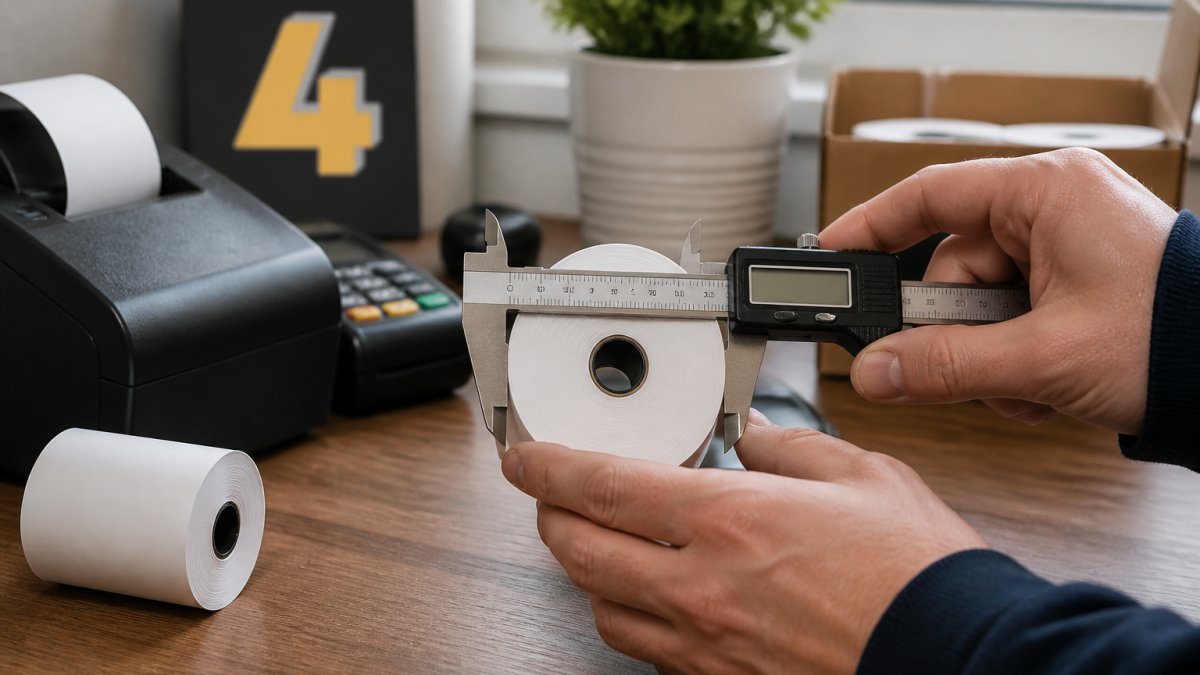
Start by checking the roll width and diameter your terminal takes. Look at the old roll or the printer manual. Card terminals use a range of roll widths, so confirm yours before ordering.
Next, check the paper type. Most card machines use thermal paper, which prints when heat hits it. Standard thermal paper is not the same as bond paper, so a plain office roll will not print. Also check whether your terminal needs a specific paper core size.
- Note the roll width (for example, 57mm or 80mm)
- Check the maximum roll diameter the compartment fits
- Confirm the paper is thermal
- Check the core size
Best for: Any card machine owner who has ordered the wrong roll before.
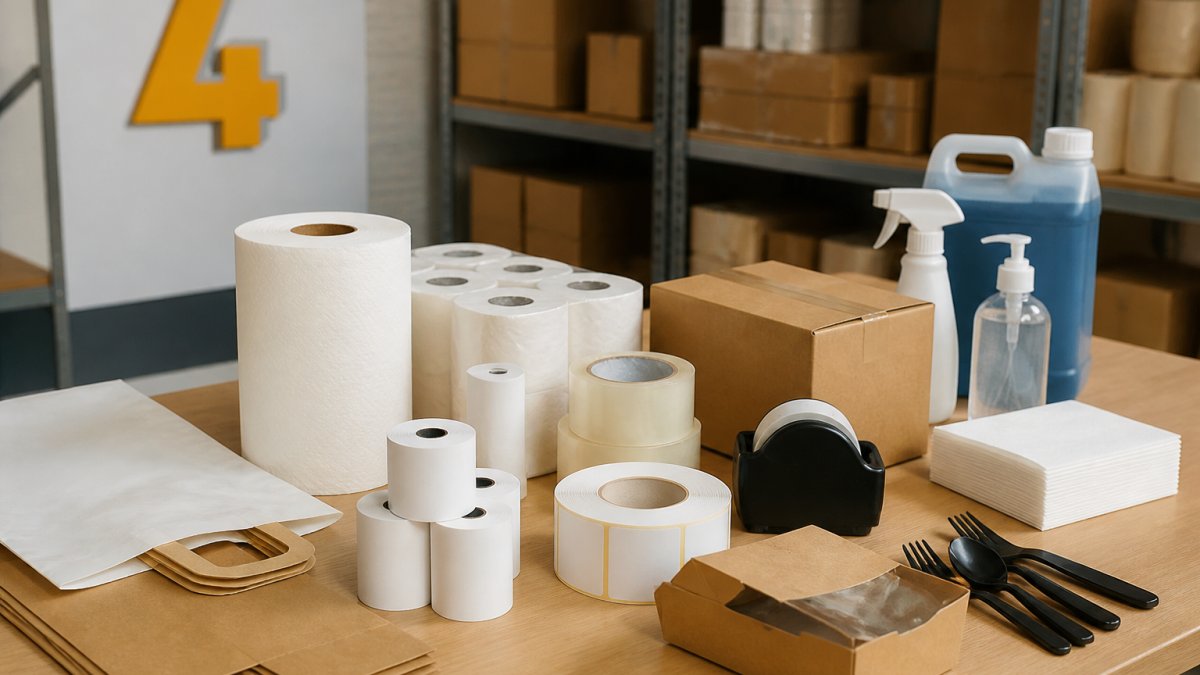
Match the roll to your terminal's exact width. You can browse our Thermal Till Rolls - 57mm range and our 60mm rolls to compare widths side by side.
How to Find the Right Roll Diameter and Width
The roll diameter is the outside size of the roll. The compartment has a maximum, so a roll that is too wide will not close. Measure the old roll's outside diameter with a ruler or tape measure, and check the compartment size in your manual.
If you have measured your printer and need a 57mm roll, go straight to our 57mm roll range.
Watch out: a roll that is slightly too wide may jam the paper feed. Always match the width exactly before you buy.
Changing Receipt Paper in an Ingenico Card Machine
The paper compartment is not identical across Ingenico terminal models. The steps below cover the general process, then note where the common countertop families differ. If your model is not listed, treat the general steps as the default and check the manual for the lid mechanism.
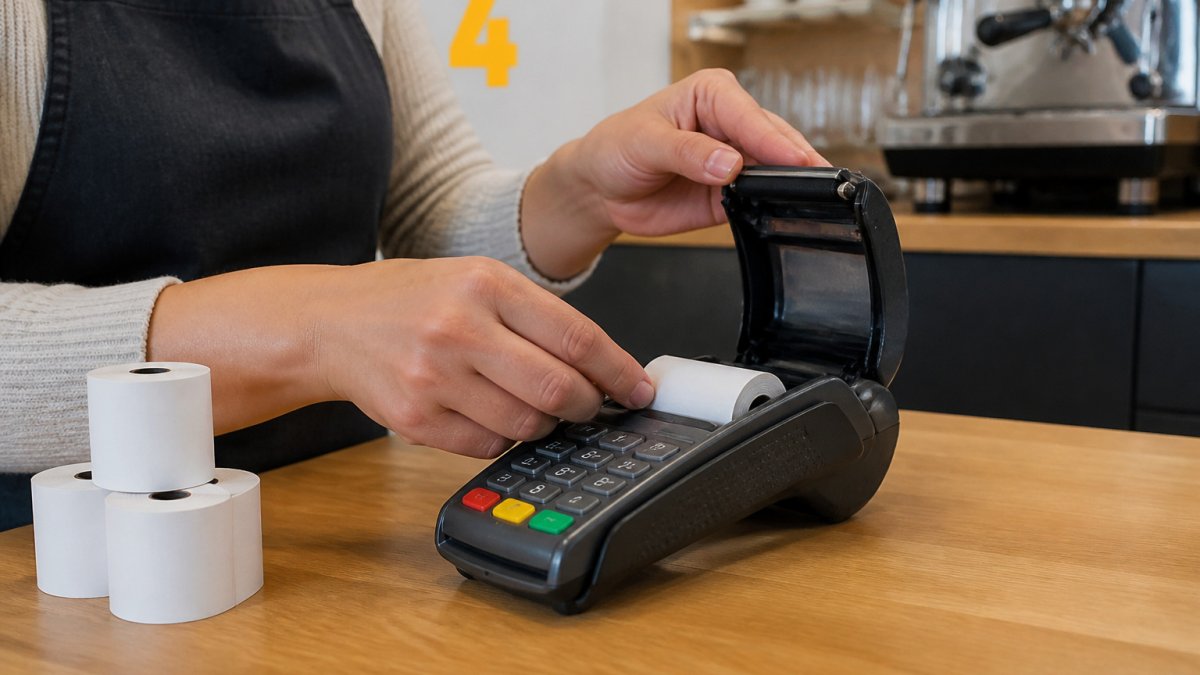
The universal procedure
- Power the terminal on and check that it is idle. Do not open the compartment mid-transaction.
- Open the paper compartment lid. On most Ingenico countertop models you press a release button or lift the lid from the back edge.
- Remove the empty roll core. Pull out any leftover paper gently, do not tug against the feed.
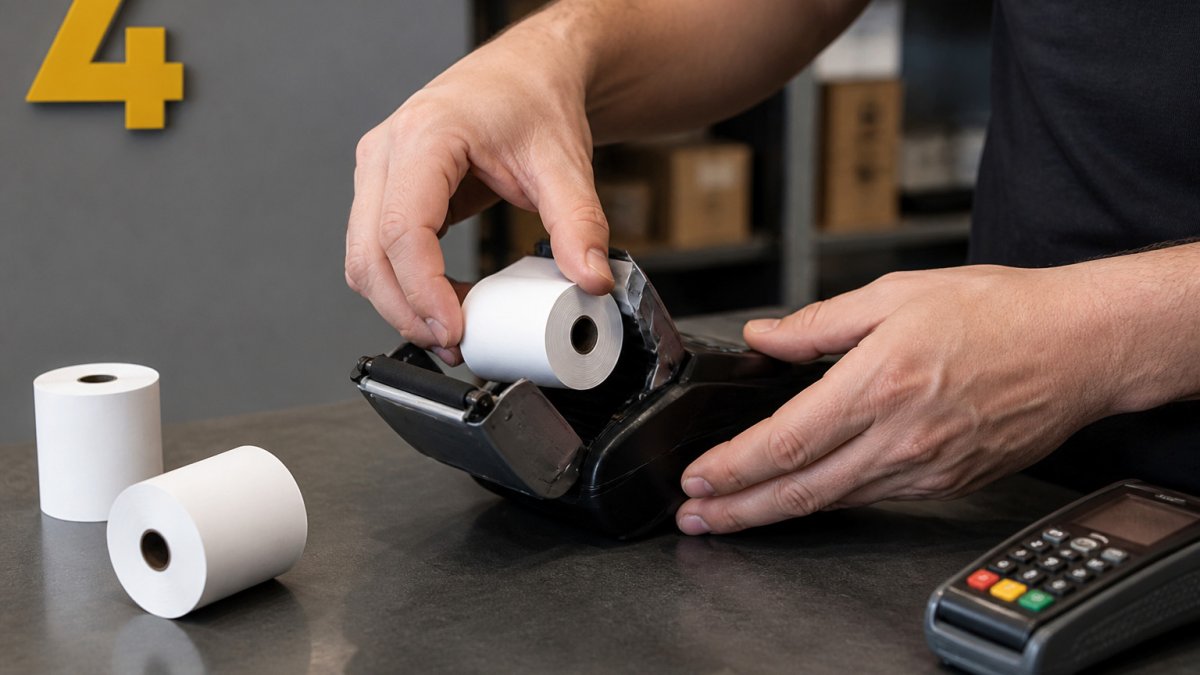
- Take the new roll and check which way the paper unrolls. The printable side must face the print head.
- Place the roll in the compartment so the paper feeds from the bottom of the roll towards the printer head.
- Pull a short length of paper out past the cutter or lid edge, roughly 5-10cm is enough to grip.
- Close the lid until it clicks shut. If it resists, the roll is probably too wide or seated at an angle.
- Print a test receipt to confirm the paper is feeding correctly.
Expected result: a clear test receipt with no blank strip, no jam, and no faint banding.
Where the common families differ
If the lid will not click shut, do not force it. Open it again, check that the roll is seated flat and that no paper is trapped under the lid edge, then close it once more.
Orientation check before you close the lid
Before closing, look at the leading edge of the paper. On a correctly loaded roll, the smooth, slightly glossy side faces up towards the print head and the paper unrolls from underneath the roll. If the paper curls away from the print head instead of towards it, the roll is in backwards, flip it before closing the lid. This single check prevents most blank-receipt calls after a roll change.
After the test print
If the test receipt is blank, flip the roll and print again. If it is faint or patchy, the paper may be low quality or stored in heat, try a fresh roll. If the terminal does not feed at all, check that the lid is fully closed and that the paper is past the cutter. Only after those checks should you treat it as a terminal fault.
The table below summarises the key steps and checks for changing receipt paper in an Ingenico terminal.
| Step | What to do | Time or frequency |
|---|---|---|
| Power check | Make sure the terminal is idle | Before opening the compartment |
| Remove core | Pull out the empty roll and any leftover paper | Each roll change |
| Orientation | Printable side faces the print head | Before closing the lid |
| Feed length | Pull out roughly 5-10cm of paper | Each roll change |
| Test print | Print a receipt to confirm feeding | After closing the lid |
Changing Receipt Paper in a Verifone Terminal
Verifone terminals, such as the models used in many Irish retail shops, follow a similar pattern. The lid mechanism differs, so check your model's layout first.
- Turn the terminal off or wait until it is in idle mode.
- Locate the paper compartment, usually on the side or top of the unit.
- Open the lid or slide the cover. Some Verifone models use a latch you press with your thumb.
- Lift out the old roll and discard the core.
- Insert the new roll with the paper leading edge facing the printer slot.
- Feed the paper through the slot until it sits level with the tear edge.
- Close the cover firmly and check that it sits flush.
- Print a test receipt.
Watch out: pulling paper through the feed by force can damage the printer head. Let the printer draw the paper in on its own.
Getting the Thermal Paper Loading Direction Right
Thermal paper only prints on one side, so loading direction matters. Most people find the orientation tricky the first time.
A simple test helps. Hold a sheet of the new paper close to a warm light or the terminal's keypad after power-up. The side that darkens is the printable side. Load the roll so that side faces the print head.
Once loaded, the leading edge should come out of the compartment ready to feed. If the printed text comes out blank or faint, flip the roll and try again. This is the most common cause of a blank receipt right after a roll change.
Troubleshooting After a Roll Change
If the terminal does not print after you change the roll, work through these checks in order.
- Blank receipts: the roll is probably loaded the wrong way. Flip it and print a test.
- Paper jam: open the lid, remove the jammed paper, and check the roll is not too wide.
- Faded print: the paper may be low quality or stored in heat. Try a fresh roll.
- No feed: check that the lid is fully closed and the paper is past the cutter.
- Low-paper warning still showing: close the lid again or power-cycle the terminal.
A common mistake is assuming the terminal is faulty when the roll is simply in backwards. Check orientation before you call for service.
Safety and Care During Replacement
Printer heads can get warm during use, so let the terminal cool for a few minutes before you change the roll. Keep your fingers clear of the cutter blade and the print head.
Switch the terminal off before opening the compartment where possible. Do not force the lid, as this can break the release clip. Store spare rolls in a dry place away from direct sunlight and heat, since thermal paper fades over time. Clean the print head gently with a dry cloth if faint lines appear.
Restocking Receipt Rolls Before You Run Out
The best time to restock is before the last roll is in the terminal. Keep at least one spare roll on hand so a busy shift never stops at a blank screen.
Keep your ordering in one place alongside other supplies, from packaging to operational stock. Check our 60mm range to set up a regular order.
Frequently Asked Questions
How do you know which way the paper roll goes in a card machine?
The paper should unroll from the bottom of the roll, so the printable side faces the print head. Most terminals show a small arrow or diagram inside the compartment. A quick test: drop a few centimetres of paper out and run a test print. If the text is blank, the roll is loaded with the wrong side facing the head, or the paper is the wrong type. Reverse the roll and try again.
What size receipt roll does my card machine need?
Check the printer compartment or the terminal manual for the roll width and maximum diameter. Most card terminals take paper between 57 mm and 80 mm wide, and the width must match your printer exactly. Measure the old roll's width if you have it. Ordering the wrong width is the most common mistake, so confirm the model number before you buy.
Why is my card machine printing blank receipts after I changed the roll?
The most likely cause is loading the roll upside down so the blank side touches the print head. Open the compartment and reverse the roll. Also check that the paper is thermal paper, since plain paper prints nothing. If the receipt is faded rather than blank, the print head may be dirty, which can be cleaned with a dry cotton swab and isopropyl alcohol once the terminal is switched off.
Can I reprint a receipt after changing the paper roll?
Usually yes. Most Ingenico and Verifone terminals keep the last transactions in memory and offer a reprint option in the menu. Check the terminal's reports or transaction history section. Reprints are only available for transactions the terminal has already processed, so it is worth printing a test receipt straight after loading the new roll.
Need the right roll for your terminal? Visit Shop4Rolls.ie today to order thermal paper that matches your machine.