 how-to
Why Till Roll Warning Stripes Matter: A Retail Guide
Last Updated: November 4, 2026
Quick Summary
A warning stripe is a coloured line printed near the core of a thermal till roll, usually red or blue, that signals the paper is nearly used up. Seeing it lets staff swap in a fresh roll between customers instead of having the printer stop mid-sale.
- The stripe appears near the core, so it shows only when the roll is close to empty.
- Printers detect the stripe with optical sensors that register a sharp change in reflected or transmitted light.
- Test your own printer to see whether it stops, beeps, or lights a lamp when the stripe passes.
- Keep one spare roll in reserve, since delivery delays can leave you without paper after the stripe appears.
- Check paper width and diameter against your printer manual before ordering to avoid a roll that will not fit.
Table of Contents
- What Is the End of Roll Warning Stripe on a Till Roll?
- How Thermal Paper and Printer Sensors Trigger the Warning
- Why the Warning Stripe Matters for Busy Checkouts
- The Cost of Running Out: Downtime Versus Restocking
- Till Roll Sizes and How to Measure Them Correctly
- How to Change a Till Roll When the Warning Appears
- Building a Restock Routine So the Stripe Never Catches You Out
- Frequently Asked Questions
What Is the End of Roll Warning Stripe on a Till Roll?
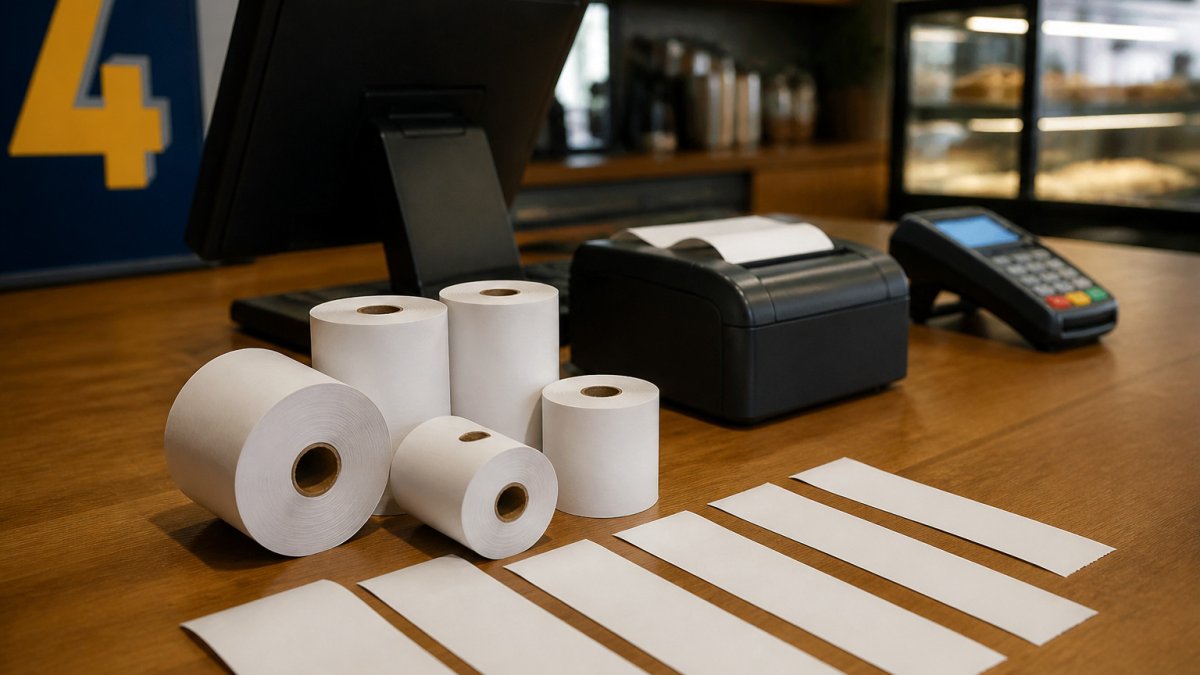
An end of roll warning stripe is a coloured line printed near the core of a thermal till roll, usually red or blue, that shows when the paper is almost used up.
Shop4Rolls.ie supplies till rolls for retail and hospitality businesses, and the warning stripe is a common question for thermal printer users.
The stripe is a simple feature, but it changes how a busy till works.
How Thermal Paper and Printer Sensors Trigger the Warning
Thermal paper is coated with a dye-and-developer layer that turns dark when the print head applies heat, so no ink or ribbon is involved. The warning stripe is printed into that same coating near the core, and the printer watches for it as the roll unwinds. Understanding how the printer actually detects the stripe explains most of the failures staff blame on 'bad paper'.
The two detection methods
Most thermal printers use one of two mechanisms, and they behave very differently when a stripe passes.
- Optical reflective sensors. An infrared emitter and detector sit on the same side of the paper. Plain thermal paper reflects the beam back strongly; the warning stripe is printed in an ink that absorbs or scatters that beam, so the reflected signal drops sharply. The printer registers the change and raises its end-of-roll flag.
- Optical transmissive sensors. The emitter sits below the paper and the detector above. The stripe blocks or attenuates the beam, and the drop in transmitted light triggers the alert. These are common on printers that also handle label stock with black-mark registration.
- Physical thickness or mechanical levers. A minority of older or low-cost units use a lever that rides on the roll surface and trips when the paper step changes at the stripe. These are the least reliable and the most sensitive to roll fit.
A few points to keep in mind:
- The sensor reads the stripe, not the amount of paper left, so the remaining length after the stripe appears is fixed by the roll specification, not by how fast you print
- Printer models differ in how they alert staff, a panel light, a display message, an audible beep, or an automatic stop
- A roll that is not sized correctly may not trigger the sensor at the right time, because the stripe sits at a different radius from the sensor
Why some printers fail to detect the stripe
A common pattern in retail support is a printer that 'ignores' the stripe on one brand of roll but works on another. The usual causes are:
- Stripe ink outside the sensor's spectral response. A stripe printed in a colour the emitter does not absorb strongly enough produces too small a signal change. Red and blue stripes are not interchangeable across every printer.
- Stripe position versus the sensor window. If the stripe is printed at a different distance from the core than the printer expects, the sensor may see it late or not at all.
- Contamination. Paper dust, adhesive residue from a poorly finished core, or a smeared print head window all reduce signal contrast.
Because sensors vary, test the warning on your own printer after installing a new roll. Watch what happens when the stripe reaches the sensor, note whether the printer stops, beeps, or merely lights a lamp, and record that behaviour so the team knows what to expect. If a roll consistently fails to trigger the alert, check the stripe colour and position against the printer's specification before assuming the printer is faulty.
Reading the Warning Stripe Visually
You can often spot the stripe before the printer does. Look at the outer edge of the roll as you unwind it. The coloured band sits near the core, so it appears only when the roll is close to empty.
Here is a quick way to check:
- Pull the roll out slowly and look for the coloured band near the core
- Note how many metres of paper remain after the stripe appears
- Compare the stripe position with your normal print volume
This visual check gives you a buffer. If the stripe appears on a Friday afternoon, you know to reorder before the weekend rush.
Why the Warning Stripe Matters for Busy Checkouts
At a busy checkout, a printer that runs out mid-transaction slows the whole queue. The cashier has to stop, change the roll, and restart, while customers wait.

The warning stripe can reduce stress on the team. Staff know what the signal means and can act without asking a supervisor.
Practical benefits include:
- Fewer interruptions during peak hours
- Less paper wasted on rushed, untidy swaps
- Clearer restock timing for the person ordering supplies
- Better customer experience with shorter queues
Think of the stripe as an early warning, not an emergency alarm. It is most useful when the team responds to it promptly.
The Cost of Running Out: Downtime Versus Restocking
Running out of till roll has a cost that many businesses underestimate, and the warning stripe is the cheapest tool for avoiding it. The useful comparison is not 'paper versus no paper' but the cost of a planned swap against the cost of an unplanned stop.
What an unplanned stop actually costs
A printer that stops mid-transaction does not just lose the paper. It costs:
- Cashier time. A swap takes a few minutes including finding a spare, opening the cover, feeding the paper, and reprinting the interrupted receipt. Across several tills and a busy shift, that adds up.
- Queue time. Each waiting customer adds to the perceived delay, and a backed-up queue at a peak hour is the moment customers are most likely to abandon a basket.
- Supervisor time. If the spare is not where it should be, a second person is pulled in to locate stock.
- Emergency purchasing. A rush order or a local retail purchase usually costs more per roll than a planned order, and it may not match the printer specification.
The planned-swap alternative
A planned swap triggered by the warning stripe moves all of that cost into a quiet moment between customers. The paper itself costs the same; what changes is when and how the swap happens.
Compare the two situations:
| Situation | What happens | Typical impact |
|---|---|---|
| Restock on warning | Planned swap between customers | Minimal disruption |
| Run out mid-sale | Printer stops, queue builds | Lost time and customer patience |
| Emergency order | Rush delivery or local purchase | Higher effort and possible extra cost |
Building the numbers for your own site
You do not need a formal study to make the case internally. A simple tally works:
- Count the unplanned roll changes per till per week over a normal trading month.
- Note how many happened during your busiest hours.
- Estimate the minutes lost per event, including the queue that formed.
- Compare that with the cost of holding one spare roll per printer.
Pricing depends on quantity, delivery timing, and the roll specification you need. If you are weighing that against the cost of a busy checkout, compare high-volume thermal paper rolls suited to heavy trading.
A planned restock routine can reduce the time and stress of an unplanned one. Watch out: ordering only when the stripe appears can leave you with no spare if delivery is slow, so keep one spare roll in reserve.
Till Roll Sizes and How to Measure Them Correctly
Till rolls come in different widths and diameters, and the right size depends on your printer. The two measurements that matter most are the paper width and the outer diameter. Getting either wrong means the roll will not fit, even if the price looks right.
Common widths include 57mm, 76mm and 80mm, while diameters vary by manufacturer. To measure a roll:
- Check the printer manual or the paper compartment for the stated width
- Measure the paper width across the roll with a ruler
- Measure the outer diameter of a roll that fits your printer
- Measure the core diameter, which is the inner hole
- Compare these figures with the specification on the roll you want to buy
For a full breakdown of sizes, see our article. It explains how to read the common specifications and avoid ordering the wrong size.
How to Change a Till Roll When the Warning Appears
When the warning stripe shows, changing the roll takes only a few minutes if you follow a consistent process.
- Open the printer cover and remove the old core
- Check the new roll is the correct width and diameter for your model
- Feed the leading edge of the new roll into the printer slot
- Close the cover and let the printer feed a few centimetres of paper
- Print a test receipt to confirm the roll is working
If you are unsure whether you have the correct roll, confirm the width and diameter before you order. Our article walks through how to check this quickly.
Common issues include feeding the paper the wrong way round, or fitting a roll that is slightly too wide.
Building a Restock Routine So the Stripe Never Catches You Out
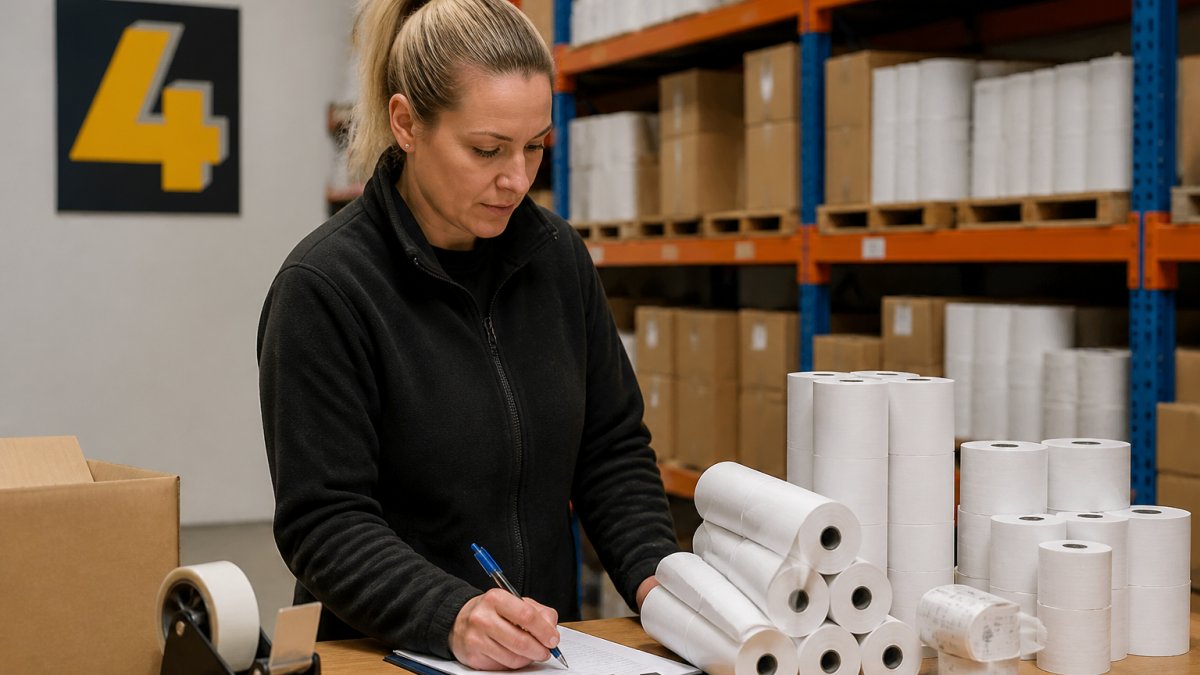
A simple restock routine stops the warning stripe from becoming an emergency. Set a fixed point in the week when you check stock, and reorder before the stripe appears on your busiest till.
Consider these steps:
- Record how many rolls you use each week
- Set a minimum stock level that covers delivery time plus a safety margin
- Reorder when stock drops to that level, not when the printer stops
- Keep a spare roll in a known place near each printer
Our range of 80mm thermal till rolls covers the most common sizes, and pre-printed rolls are available if your business uses branded receipts.
Watch out: switching suppliers mid-routine can leave gaps, so check that the new roll matches your printer before you run down your current stock.
Frequently Asked Questions
What is the warning stripe on a till roll?
The warning stripe is a coloured band printed near the end of a thermal till roll, usually along the inside of the paper. When the printer's sensor or the stripe passes the print head, it signals that only a short length of paper remains, typically a few metres. It gives staff time to prepare a replacement before the roll runs out during a transaction. Stripe positions vary by manufacturer and roll type, so check your supplier's specification if you are unsure what your printer expects.
Can you keep printing after the warning stripe appears?
Usually yes, for a short while. The stripe is an early warning rather than an immediate stop, so the printer can typically print a few more receipts before the paper ends. However, once the roll runs out mid-receipt, the transaction may be cut off and you may need to reload paper. The safest approach is to replace the roll as soon as the stripe appears, especially during busy trading hours when interruptions cost the most.
Do all thermal till rolls have warning stripes?
Not all of them. Many thermal till rolls carry an end-of-roll marking, but it depends on the paper and the printer model. Some printers detect the end of the roll by sensing the paper core or using a mechanical sensor rather than a printed stripe. Check the specification for your printer and the roll you buy, and make sure the roll you order matches the warning method your printer uses.
How do I know which till roll size to order?
Start by checking your printer's manual or the existing roll in the printer for the paper width and maximum outer diameter. Common widths include 57mm, 76mm and 80mm, and the core diameter is also important for fit. Measure the outer diameter of a full roll in millimetres and note the core size. If you are unsure, send your printer model to the Shop4Rolls.ie customer care team, who can confirm the correct size before you order.